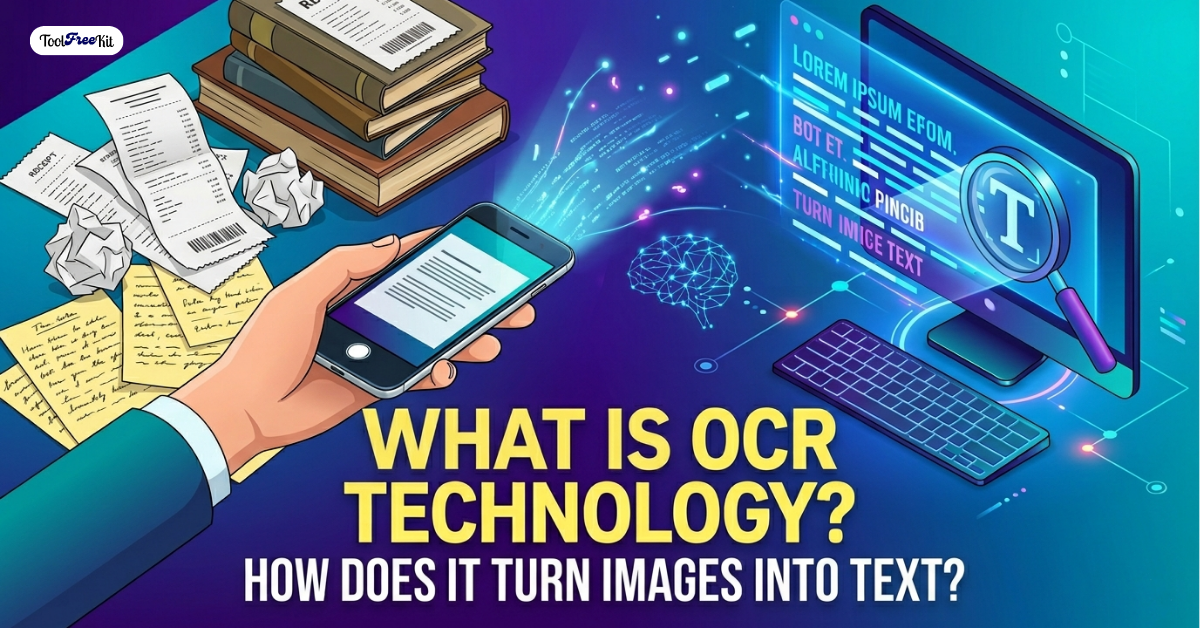
What is OCR Technology and How Does It Turn Images into Text?
Have you ever taken a photo of a receipt, a book page, or a whiteboard full of notes and wished you could instantly copy and paste the text instead of retyping it manually?
That seamless magic is made possible by OCR technology.
Whether you are digitizing old paper documents, extracting data from invoices, or pulling quotes from an image, OCR does the heavy lifting in seconds. But what exactly goes on behind the screens? In this guide, we will break down what OCR technology is, how it works, and how you can use free digital tools to extract text from images instantly.
What is OCR Technology?
OCR stands for Optical Character Recognition. At its core, it is a technology that converts different types of documents—such as scanned paper documents, PDF files, or images captured by a digital camera—into editable, searchable, and machine-readable data.
Before OCR, if you had a printed document and wanted it on your computer, your only option was to look at the paper and manually type every single word into a text editor. OCR eliminates this tedious process by training computers to “read” the shapes of letters and numbers within an image file.
How Does OCR Work? (Step-by-Step)
Turning a static picture into editable text is a multi-step engineering process. While a modern app handles this in the blink of an eye, the underlying software follows a precise four-stage workflow to decode the pixels.
1. Image Acquisition
First, the system needs an image. This could be a picture you take with your smartphone, a scanned PDF, or a screenshot. The quality of this initial image heavily impacts the accuracy of the final text output.
2. Pre-Processing the Image
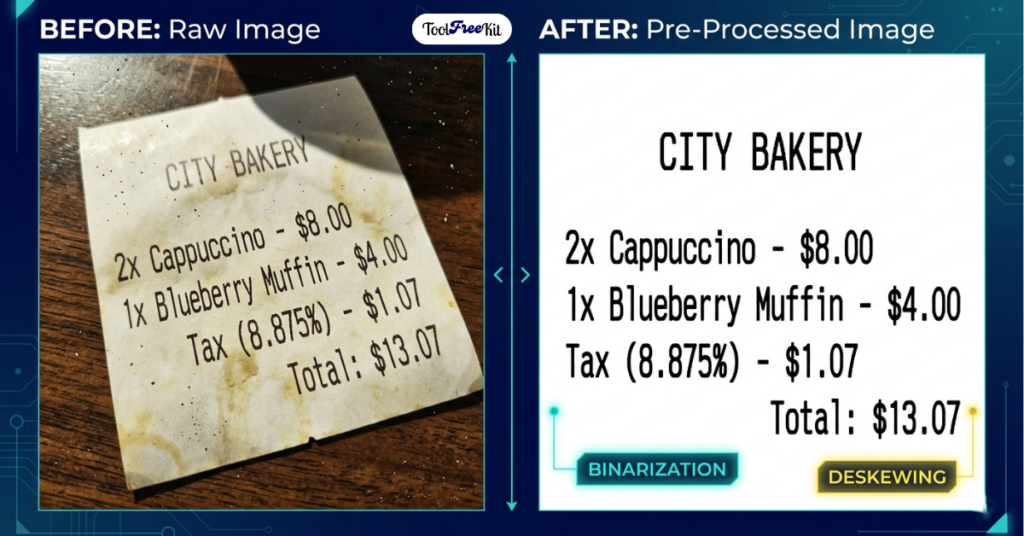
Raw images are often messy. They contain shadows, tilted angles, background noise, or blurry sections. Before analyzing the text, the OCR software cleans up the file using a few key techniques:
- Binarization: The tool converts the image to strict black and white. Removing colors and grayscales makes it much easier for the algorithm to separate the text from the background.
- Deskewing: If the document was scanned or photographed at a slight angle, the software automatically aligns and straightens it.
- Despeckling: This removes digital dust, spots, and stray pixels to ensure clean letter edges.
3. Text Recognition
This is where the actual “reading” happens. Modern OCR software generally relies on two different methods to recognize characters:
- Pattern Matching: The software compares the shapes in the image against a vast database of pre-loaded fonts and character matrices. If a shape matches the matrix for an uppercase “A”, it outputs an “A”.
- Feature Extraction: Instead of matching exact fonts, advanced algorithms look for specific traits—like intersecting lines, closed loops, open curves, and angles. For example, a shape with a central horizontal bar and two diagonal legs is recognized as an “A”, regardless of the font style.
Modern OCR technology achieves 98-99% accuracy on clean, high-resolution text images.
4. Post-Processing and Correction
Finally, the system runs the extracted text through built-in dictionaries and language models to correct obvious mistakes. If the software is unsure whether a character is the number “0” or the letter “O”, it uses the context of the surrounding word to make an educated guess.
💡 Try It Right Now!
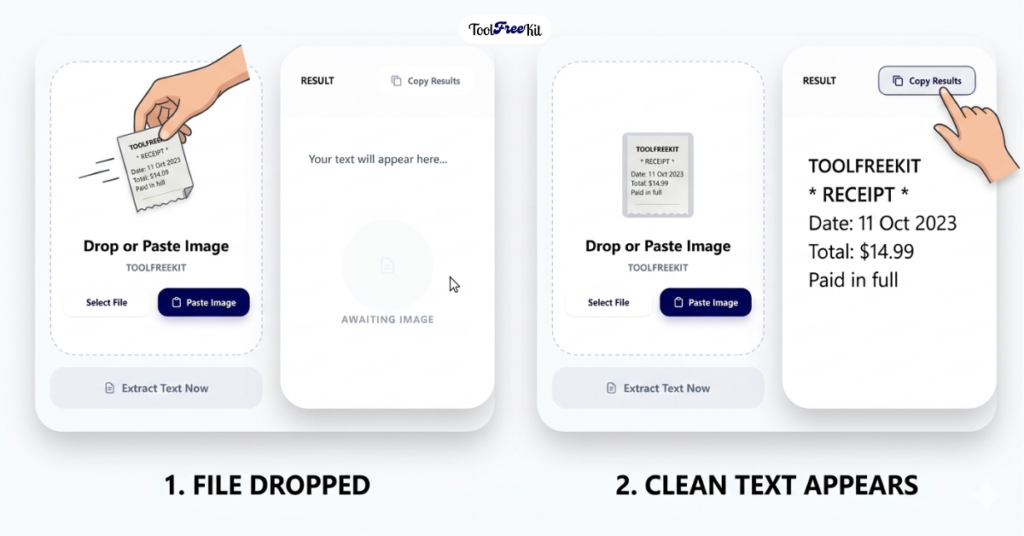
Don’t waste time typing out text from images by hand. You can experience this technology firsthand with our quick, secure, and 100% Free Image to Text Generator. Just upload your image, let the OCR work its magic, and copy your clean text instantly!
👉 Get Started: Image to Text Generator
The Key Benefits of Using Image to Text Technology
Integrating OCR into your daily digital workflow offers massive productivity advantages:
| Benefit | Why It Matters |
|---|---|
| Saves Immense Time | Retyping a 5-page document can take an hour. A solid online OCR converter can process and extract that text in under five seconds. |
| Enables Full Text Search | Scanned documents and JPEG images are completely invisible to search bars. Once converted via OCR, you can use Ctrl + F to find specific keywords within large document archives instantly. |
| Reduces Human Errors | Manual data entry naturally introduces typos, missed lines, and spelling mistakes. Automated extraction maintains the exact integrity of the original text. |
| Saves Physical Storage Space | Digital text files take up a tiny fraction of the storage space required by high-resolution image files or physical paper filing cabinets. |
Common Use Cases: Who Needs an Image to Text Tool?
OCR technology isn’t just for large corporations; it is an everyday essential for individuals across various fields:
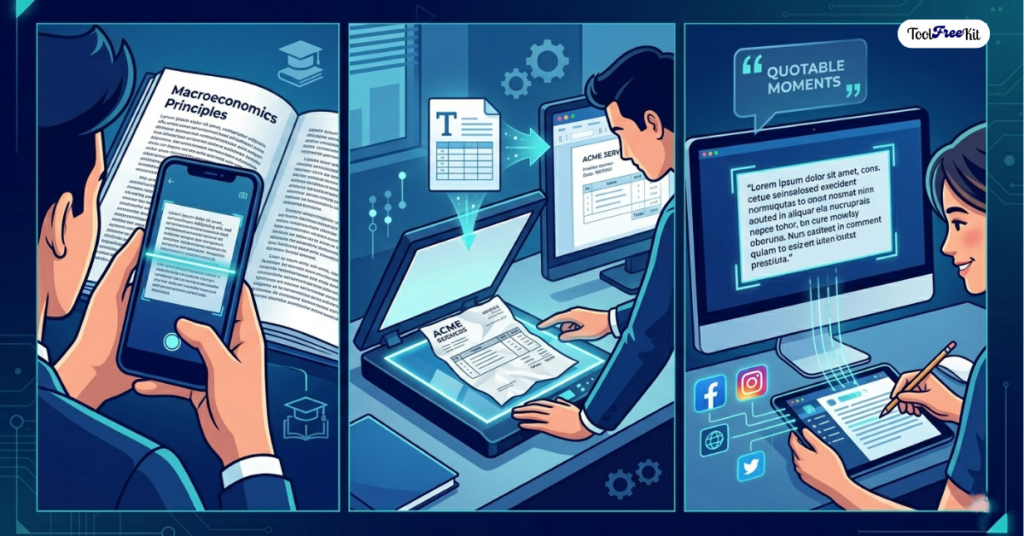
- Students and Researchers: Snap photos of textbook passages, digital PDFs, or classroom slides to build study notes and research documents without manually typing every word.
- Data Entry Professionals: Speed up financial workflows by instantly extracting line items, dates, and figures from scanned receipts, bills, and invoices.
- Content Creators and Writers: Extract motivating quotes or useful reference material from physical books, magazines, or social media screenshots to use in your own content.
- Small Business Owners: Digitize invoices, contracts, and customer documents for easier record-keeping and compliance.
- Legal Professionals: Extract text from scanned case files, evidence photos, or handwritten notes for case preparation.
Looking for a Free Image to Text Converter Online?
Many online image to Text Converter tools force you to register, pay for premium subscriptions, or deal with strict daily upload limits.
At ToolFreeKit, we believe helpful web utilities should be accessible to everyone without the friction. Our browser-based tool processes your images locally and safely, giving you lightning-fast text extraction completely free of charge.
✅ No registration required
✅ 100% free — no hidden fees
✅ Processes images locally for privacy
✅ No daily upload limits
👉 Get Started Today: Image to Text Generator — drop your file or screenshot, and get your editable text in one click!