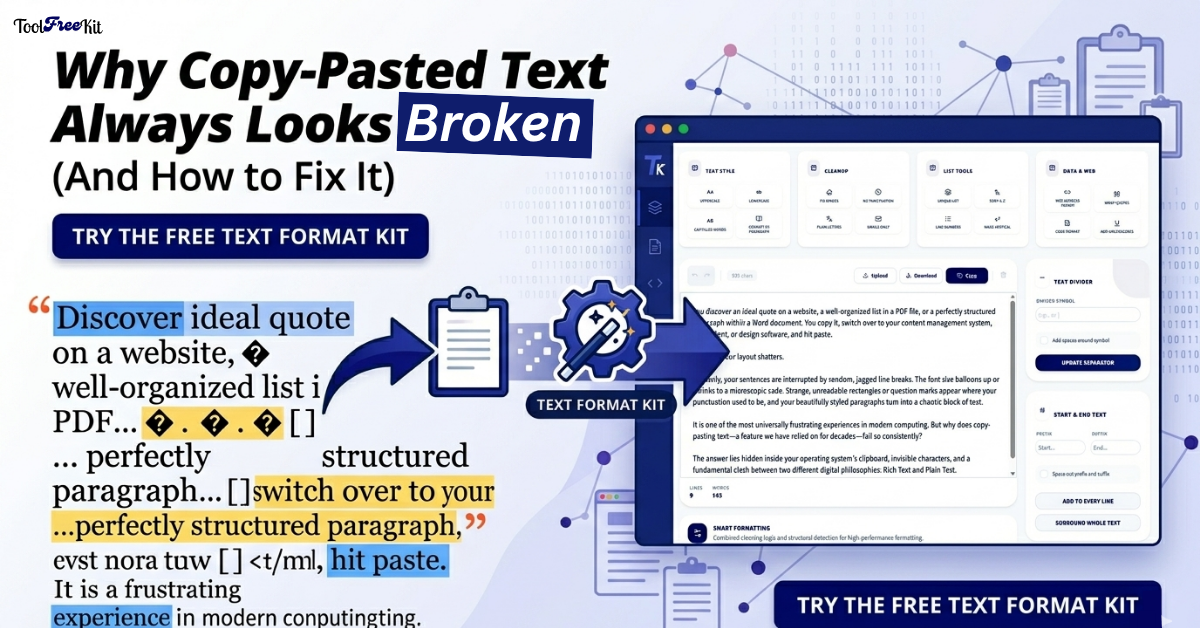
Why Copy-Pasted Text Always Looks Broken (And How to Fix It)
We have all been there. You discover an ideal quote on a website, a well-organized list in a PDF file, or a perfectly structured paragraph within a Word document. You copy it, switch over to your content management system, email client, or design software, and hit paste.
Instantly, your layout shatters.
Suddenly, your sentences are interrupted by random, jagged line breaks. The font size balloons up or shrinks to a microscopic scale. Strange, unreadable rectangles or question marks appear where your punctuation used to be, and your beautifully styled paragraphs turn into a chaotic block of text.
It is one of the most universally frustrating experiences in modern computing. But why does copy-pasting text—a feature we have relied on for decades—fail so consistently?
The answer lies hidden inside your operating system’s clipboard, invisible characters, and a fundamental clash between two different digital philosophies: Rich Text and Plain Text.
1. The Invisible Baggage: Rich Text vs. Plain Text
When you select text on a screen, you aren’t just copying the letters and words. Most of the time, you are copying a mountain of invisible structural data.
There are two primary ways computers handle text:
Plain Text (text/plain)
This is the raw material. It contains only the literal characters you see (A, b, c, 1, 2, 3) and basic structural keystrokes like spaces and standard line breaks. It contains zero styling metadata.
Rich Text / HTML Text
This includes files from Microsoft Word, Google Docs, PDFs, and web pages. When you copy from these sources, your computer’s clipboard pulls the text along with its:
- Font family and font size
- Text colors and background colors
- Weight (bold/italics)
- Inline CSS styles
- Structural tags (divs, spans, paragraphs)
When you copy text from a web page or a modern word processor, the clipboard doesn’t just save one version of your text. It saves multiple formats simultaneously. When you paste it into a target application, that application tries to be “helpful” by reading the richest format available.
If you paste a sentence from a website into an email composer, the composer attempts to render the original website’s HTML inline styles. If the website used a complex grid, unique line-heights, or custom padding, those properties get injected directly into your document, clashing violently with your existing design.
2. The PDF Problem: How to Remove Line Breaks from PDF Online
Have you ever copied a paragraph from a PDF document only to find that every single line has a hard break in the middle of a sentence when you paste it?
This occurs because PDFs are designed for visual preservation, not text fluidity. A PDF views text much like an architect views a blueprint: every word is assigned a fixed geometric coordinate on a digital page. To make a paragraph look neat on a PDF page, the software often appends a hard Carriage Return and Line Feed (CRLF) sequence at the end of every visual line to force the text downward.
When you copy that text, the clipboard copies those hard line breaks literally. When pasted into a web editor, the editor interprets each line as an entirely independent paragraph, destroying your natural text flow. This phenomenon is known in technical terms as an “embarrassing line wrap”, where text fails to recognize the margins of its new home.
3. Gremlins in the Code: Smart Quotes and Hidden Unicode
Another major culprit behind broken text layout is the mismatch between character encoding systems.
Word processors frequently use a feature called “Smart Quotes” or “Curly Quotes.” While these look elegant in a print layout, they utilize unique Unicode characters that are entirely distinct from the standard, straight quotation marks used by web browsers and clean text editors.
| Type | Example |
|---|---|
| Standard Straight Quotes | “Hello” |
| Word Processor Smart Quotes | “Hello” |
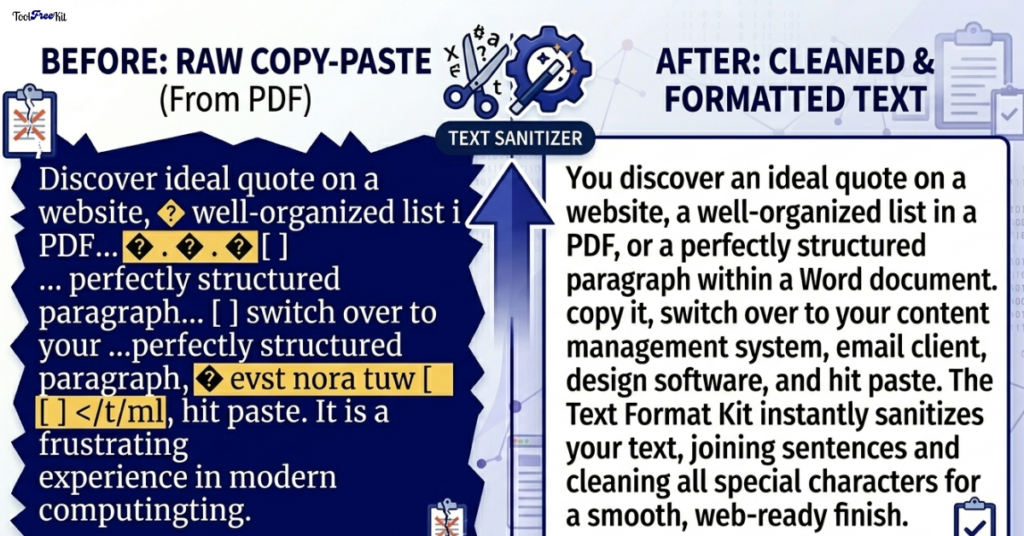
If you paste text containing these stylized characters—or other specialized symbols like em-dashes and non-breaking spaces—into an application that expects standard encoding, the system panics. Unable to translate the specific Unicode symbol, it renders broken layout artifacts like “ or empty square boxes.
4. The Solution: Strip the Metadata
To fix broken text, you have to force your computer to strip away the hidden baggage and leave behind nothing but the pure, raw characters.
Many people try to bypass this by pasting their text into a basic system notepad application first, recopying it, and then pasting it into their final destination. While this workaround strips out visual fonts and colors, it frequently fails to remove:
- Hard line breaks
- Trailing whitespaces
- Corrupted quotation marks
The most efficient way to clean your text is to use a dedicated, browser-based utility that resets your text formatting instantly.
Streamline Your Workflow with the Free Text Format Kit
If you are tired of manually fighting with broken layouts, weird fonts, and random line breaks every time you copy and paste, our Text Format Kit is built exactly for you.
Our web-based tool processes text locally in your browser—no data leaves your device.
Unlike traditional text converters, the Text Format Kit functions 100% locally in your browser, your data never touches an external server, keeping your information completely private and secure. With a single click, you can sanitize your text, eliminate hidden layout coding, and make your content completely web-ready.
Key Utilities in the Kit
| Feature | What It Does |
|---|---|
| Remove Extra Spaces and Breaks | Automatically eliminates unintended double spaces and removes stubborn line breaks that originate from PDF documents. |
| Clear Visual Styles | Strips out bloated HTML inline styling, matching fonts, and background colors |
| Convert Encoding | Cleans up curly quotes and odd formatting artifacts into standard, web-safe text |
See the difference: PDF line breaks and strange characters removed in one click.
5. How to Prevent Broken Text Layouts
To keep your text clean moving forward, adopt these quick habits:
Use Paste-Without-Formatting Shortcuts
In most modern web browsers and word processors, you can bypass rich text by using:
- Windows:
Ctrl + Shift + V - Mac:
Cmd + Shift + V
This pastes content as pure plain text instantly.
Sanitize Before Publishing
If you are managing an online store, updating a blog, or coding a website, always run your source text through a formatting tool first. Injecting raw Word document code directly into a website editor will eventually break your site’s global CSS layout styles.
Watch the Margins
When copying out of multi-column layouts like academic papers or PDFs, expect hard line breaks and run them through a text cleaner to rejoin sentences smoothly.
Traditional workflow (broken) vs. optimized workflow with Text Format Kit (clean).
Final Thoughts
Copy-pasting shouldn’t feel like a gamble. By understanding the hidden formatting baggage traveling alongside your clipboard data, you can clean your workflows and keep your text looking pristine across any platform.
Ready to stop fighting formatting? Try the Text Format Kit now—it’s free, private, and works instantly in your browser.
Clean your text in seconds. No installation. No data collection.